
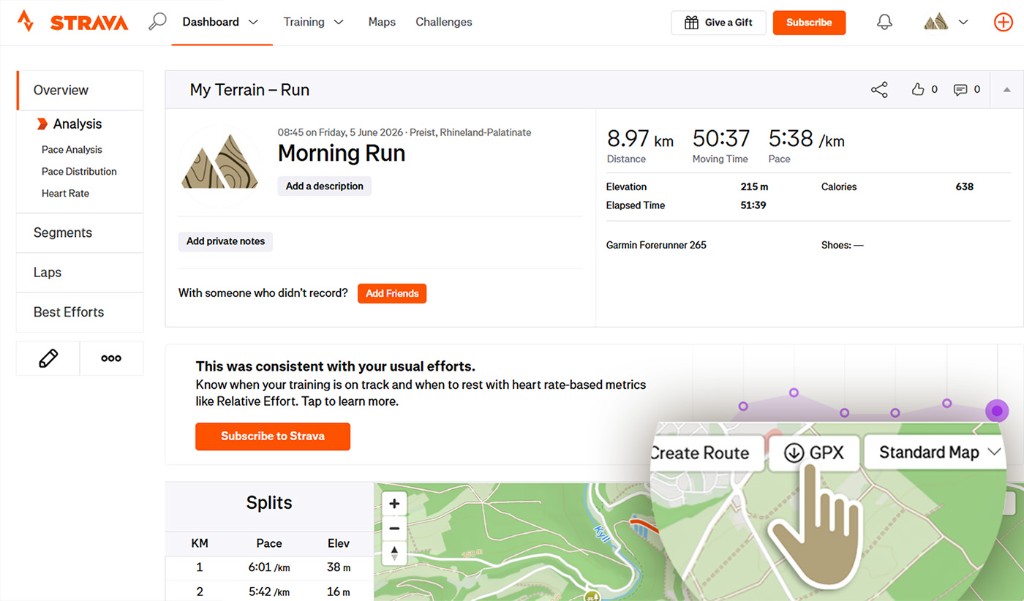
Step 1 Download GPX Screenshot pending
/gpx-guides/strava/desktop/01.jpg Step 1
Download GPX
Open your activity on strava.com and tap GPX on the map.
Choose device and app. Then upload to the creator.
/gpx-guides/strava/desktop/01.jpg Step 1
Open your activity on strava.com and tap GPX on the map.
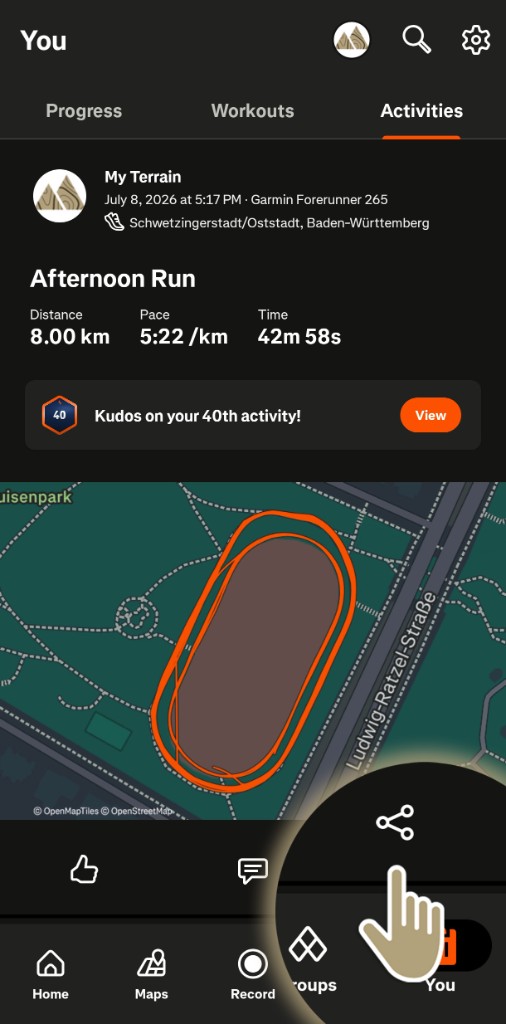
/gpx-guides/strava/mobile/01.jpg Step 1
In the app, You tab → Activities. Open your activity and tap Share.
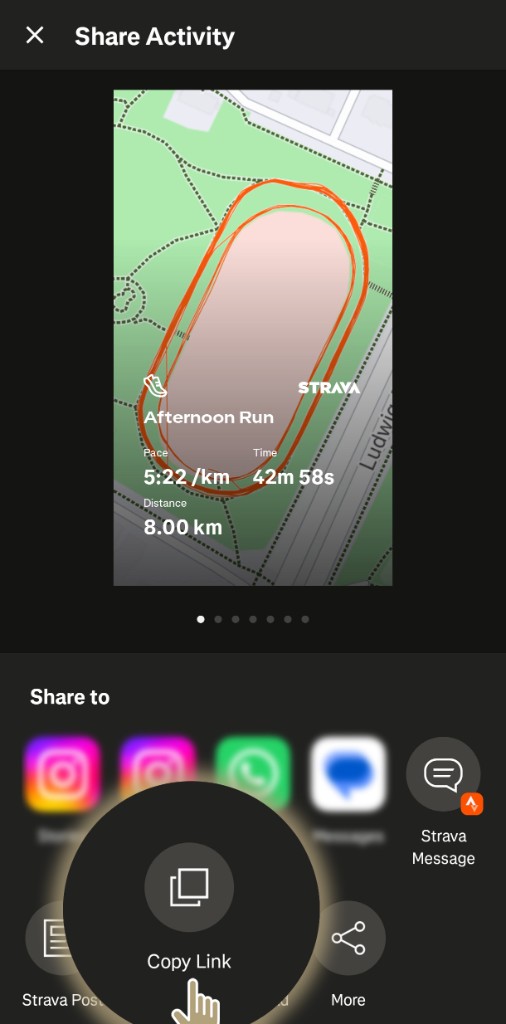
/gpx-guides/strava/mobile/02.jpg Step 2
In Share Activity, tap Copy Link.
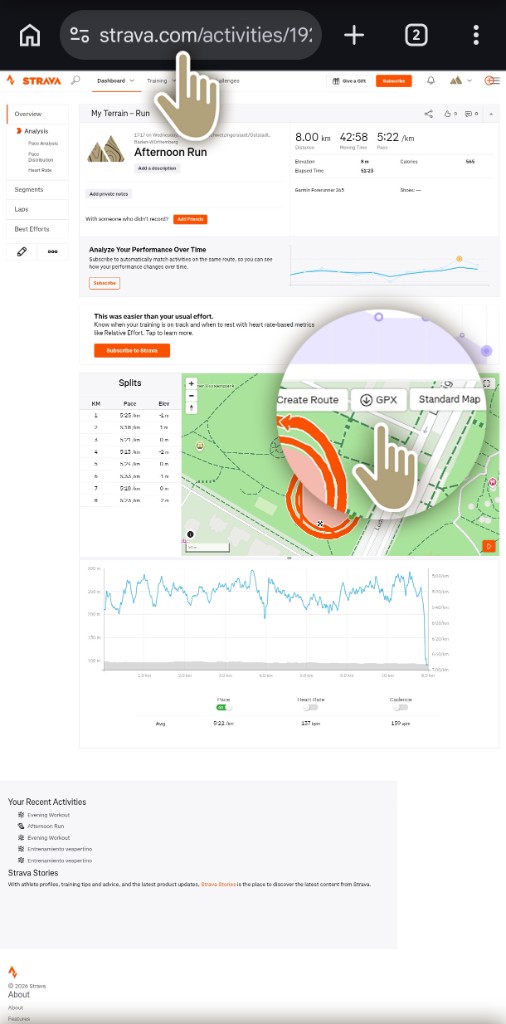
/gpx-guides/strava/mobile/03.jpg Step 3
Open the link in the browser and tap GPX on the map.
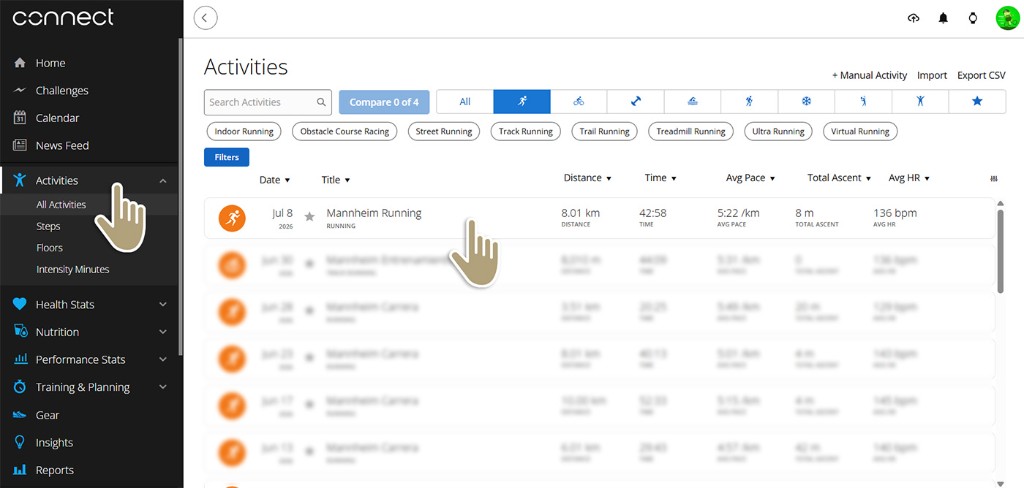
/gpx-guides/garmin/desktop/01.jpg Step 1
In Activities, select your activity.
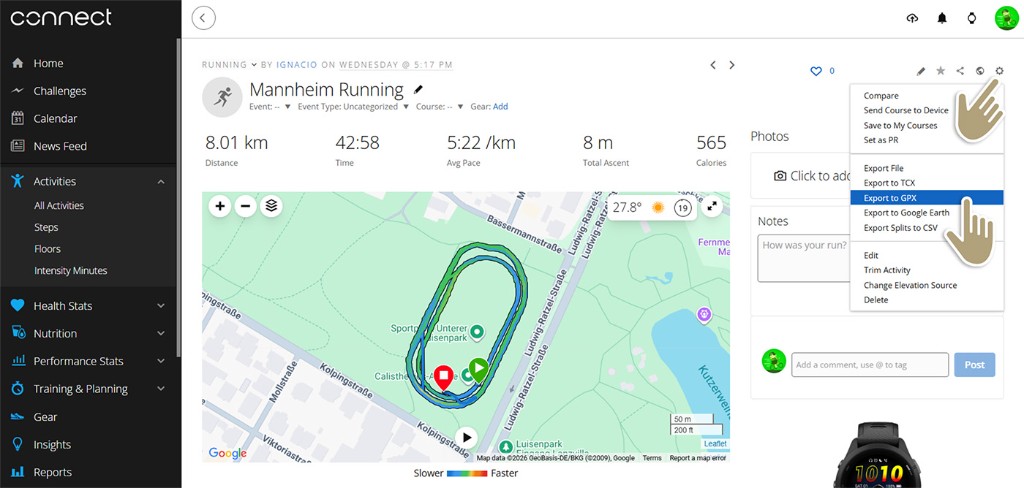
/gpx-guides/garmin/desktop/02.jpg Step 2
Tap the gear icon and choose Export to GPX.
It is not currently possible to download the .gpx from the Garmin Connect app. You can sync your activities with Strava and download the file from there.
On Komoot, a route’s .gpx can only be downloaded with Premium or if you bought the maps for that route’s area.
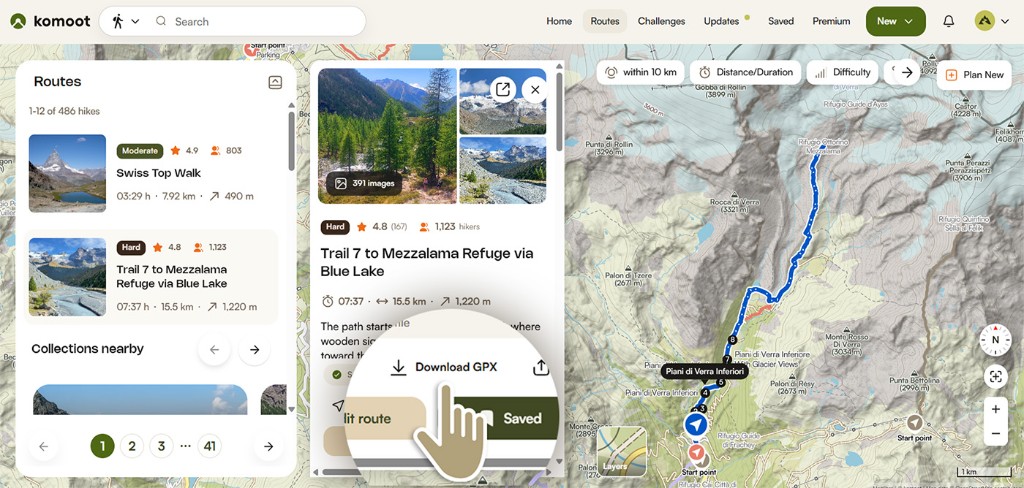
/gpx-guides/komoot/desktop/01.jpg Step 1
In Routes, open the route and tap Download GPX.
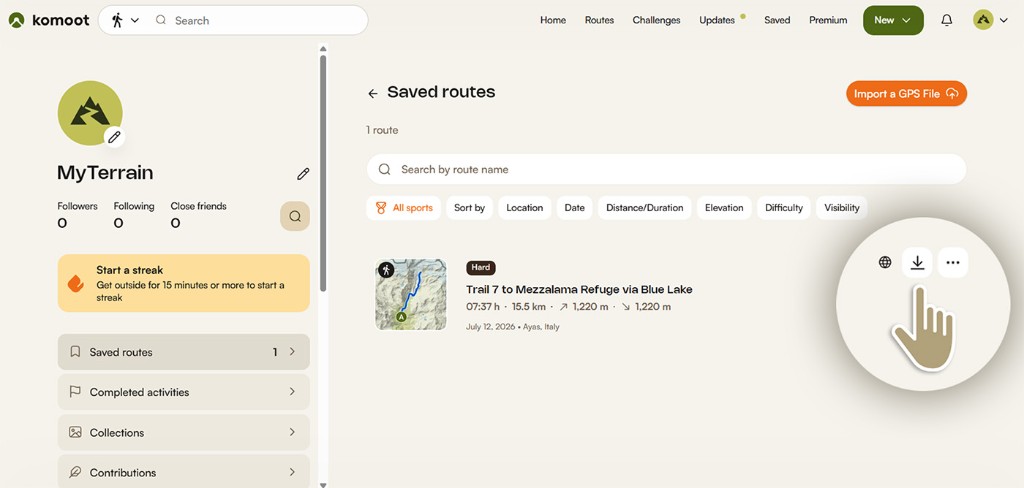
/gpx-guides/komoot/desktop/02.jpg Step 2
In Saved routes, tap the download icon on your route.
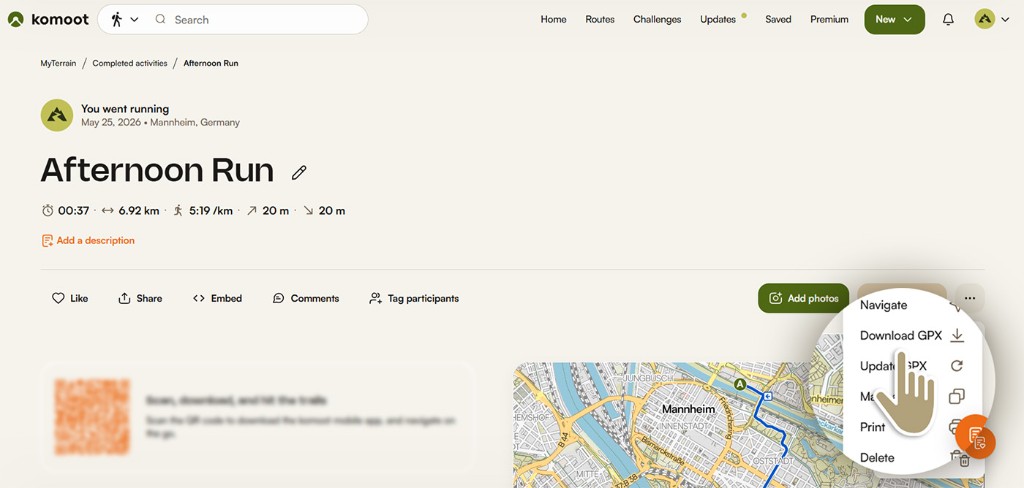
/gpx-guides/komoot/desktop/03.jpg Step 3
In the activity, open ⋯ and choose Download GPX.
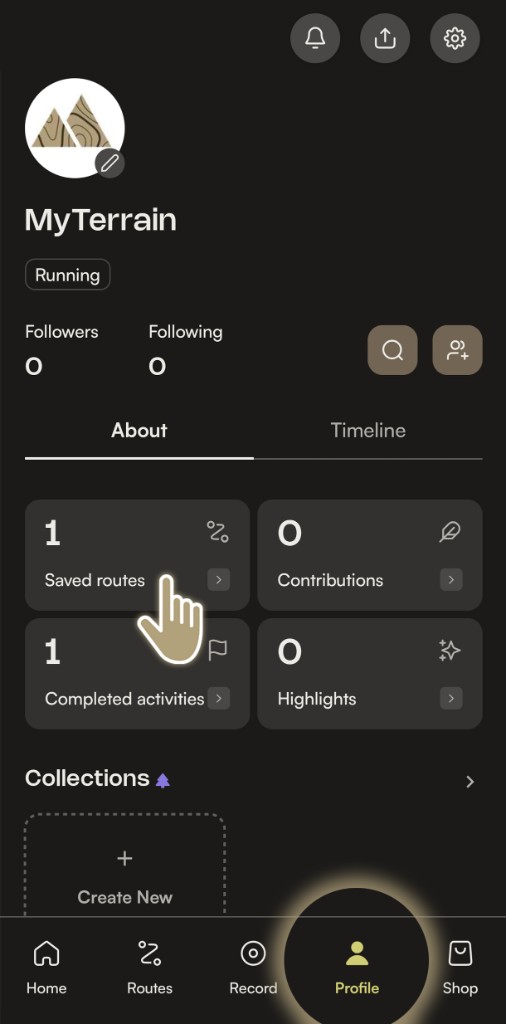
/gpx-guides/komoot/mobile/01.jpg Step 1
In Profile → About, open Saved routes.
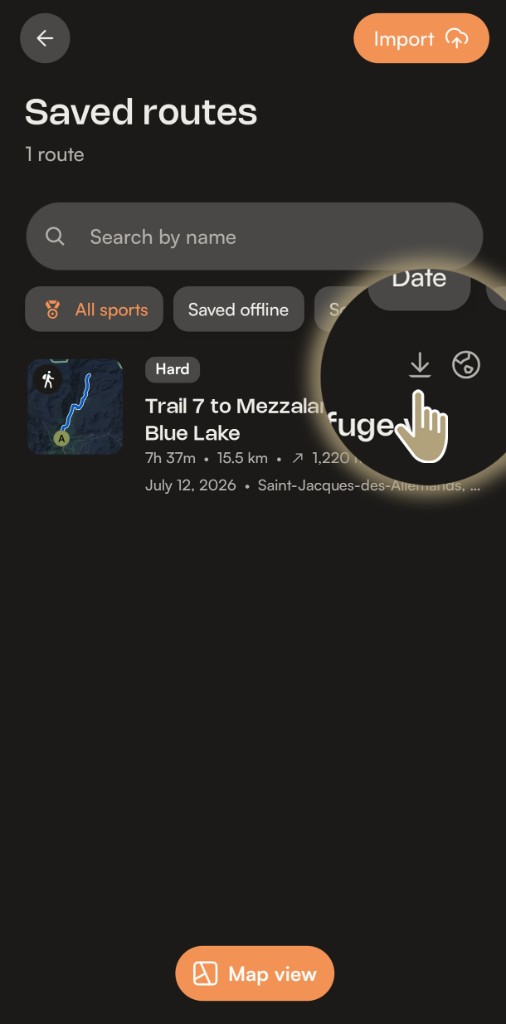
/gpx-guides/komoot/mobile/02.jpg Step 2
Tap the download icon on your route.
Already have the file? Go to creator ↓
Cookies and privacy
We use necessary cookies to operate the website. With your consent, we also use Google Analytics to understand how the site is used and the Meta Pixel to measure and improve the effectiveness of our ads. Privacy policy